 Works seamlessly with Zoom
Your invisible Zoom
interview assistant
Real-time AI support that stays hidden during Zoom screen shares. Get live transcription, smart prompts, and instant recall when you need it most.
macOS and Windows. 15-minute free trial, no credit card required.
Invisible on Zoom
Uses OS-level content protection on macOS and Windows, so Dusky is excluded from what your interviewer sees.
Live transcription
Captures interviewer questions in real-time so you never miss a word.
AI-powered prompts
Get structured answer frameworks and talking points instantly.
How Dusky stays invisible on Zoom
Dusky uses OS-level content protection — the same mechanism the operating system uses for its own overlays. Zoom respects this flag and skips the Dusky window entirely when sharing your screen.
OS-level protection, not a Zoom hack
Dusky does not rely on Zoom plugins, browser extensions, or window tricks. It registers with the operating system as a content-protected window on both macOS and Windows. Zoom, Google Meet, Teams, and other conferencing apps skip protected windows automatically.
Always on, even outside stealth mode
Content protection is always active on both macOS and Windows — you do not need to toggle anything, and there is no setting that turns it off. Whether Dusky is in stealth mode or not, the exclusion flag stays on.
Works across Zoom share modes
Share your entire screen, a specific window, or a Chrome tab — you do not have to pick a particular sharing option for Dusky to stay hidden. What does matter is Zoom's screen capture mode, which decides whether Zoom respects the exclusion flag at all. Check that setting before your interview.
Check your Zoom screen capture settings
Zoom has a screen capture mode setting that controls how it captures your screen during sharing. Make sure it is set to use window filtering so Dusky stays invisible.
Open Zoom settings
Open the Zoom desktop app. Click your profile icon in the top-right corner and select Settings.
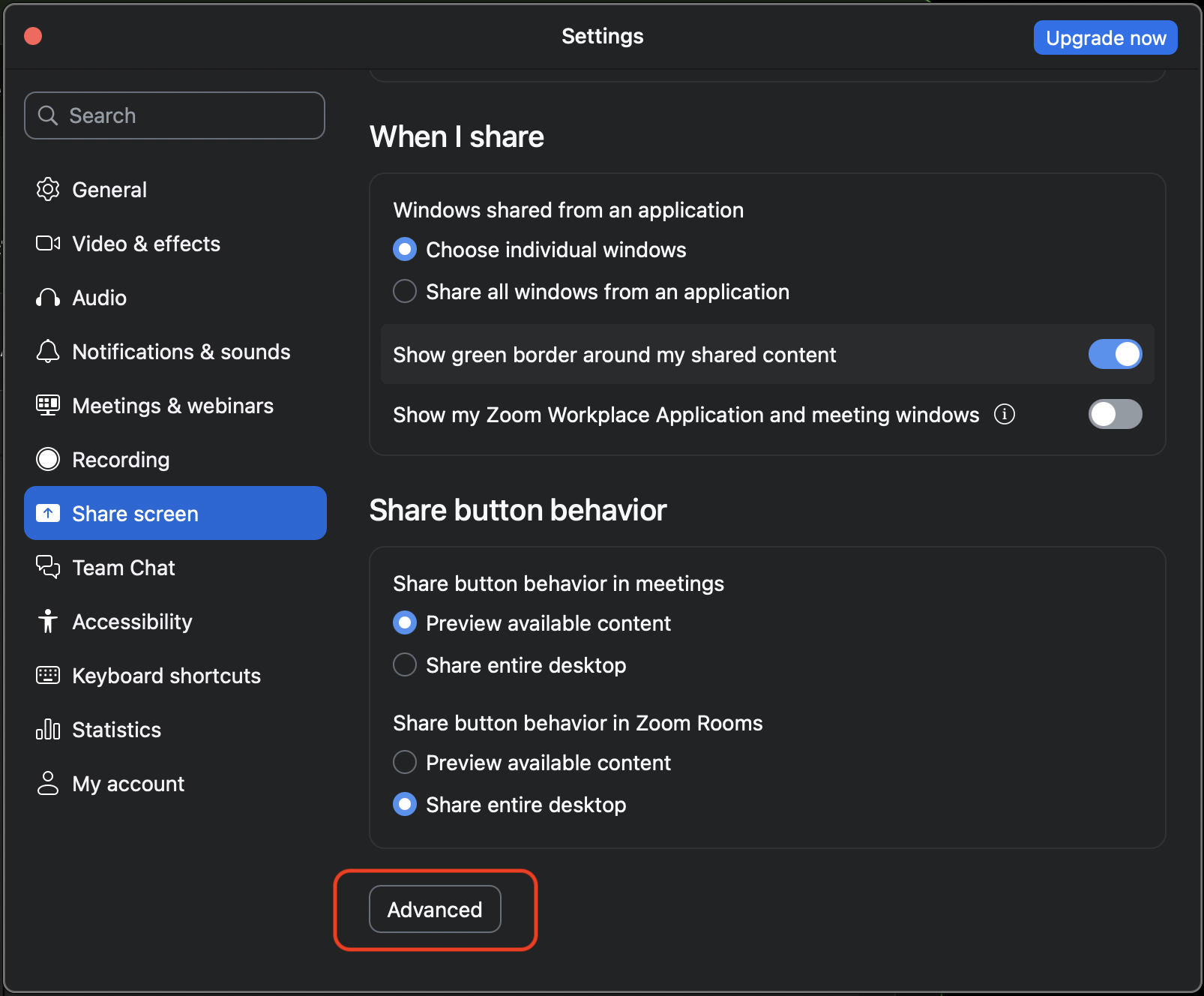
Go to Share Screen > Advanced
In the left sidebar, click Share Screen. Then scroll down and click Advanced to reveal additional options.
Set screen capture mode
Under Screen capture mode, select "Advanced capture with window filtering". This tells Zoom to respect window-level exclusion flags, which is how Dusky stays invisible during screen share.
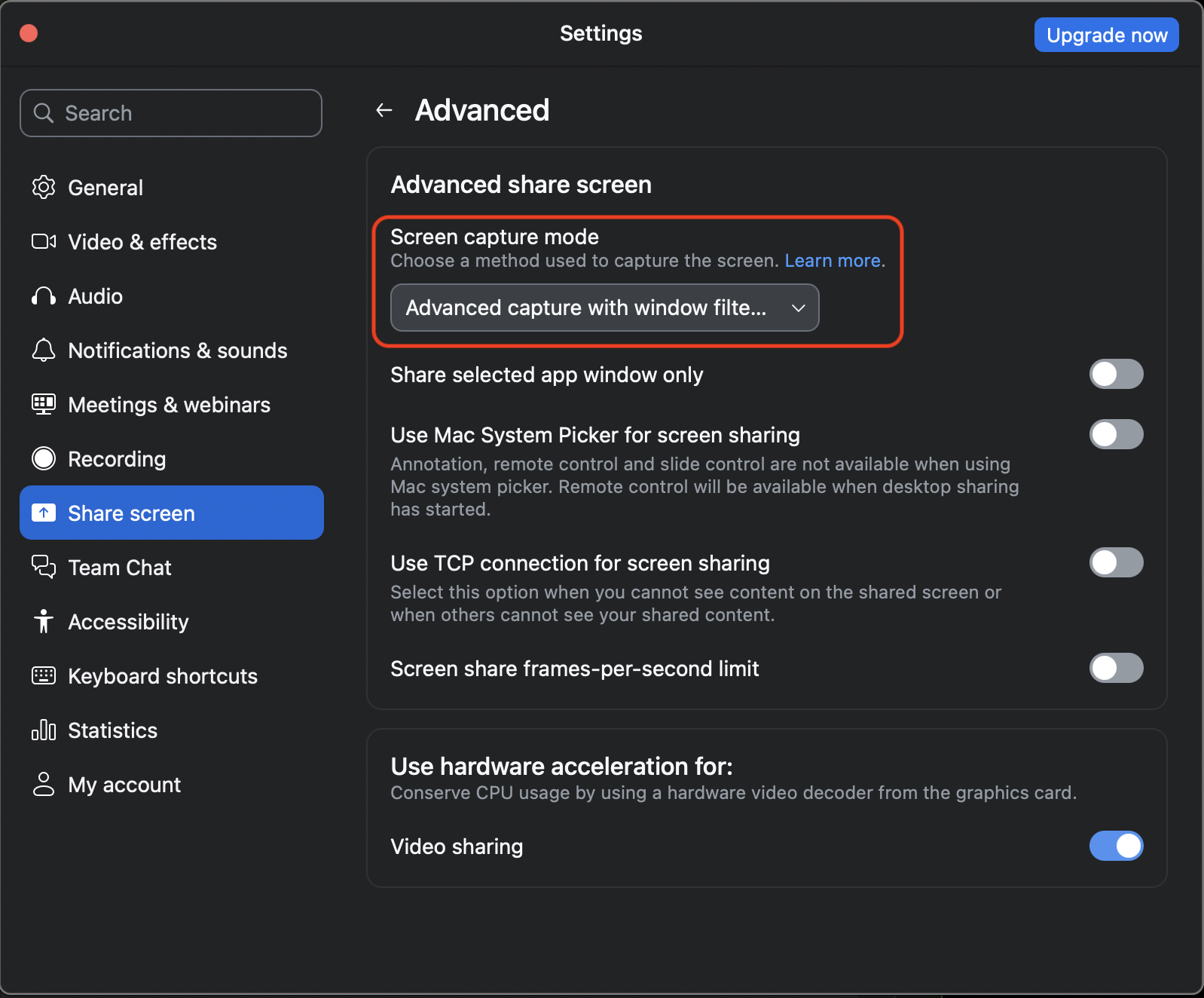
Note: Zoom defaults to "Auto", which usually works fine. Setting it explicitly to "Advanced capture with window filtering" tells Zoom to use the capture method that respects window exclusion, rather than leaving the choice to Zoom. Test it either way before a real interview.
Verify invisibility before your interview
Always test before a real interview. Dusky walks you through this check during onboarding, but the app can't see your screen share — a second device on the call is what confirms it.
Open Zoom and start a test meeting
Start a meeting by yourself, or call a friend. You need an active Zoom session to test screen sharing.
Position Dusky on screen
Make sure the Dusky window is visible on your display. Press Cmd/Ctrl+B if it is hidden.
Share your screen in Zoom
Click Share Screen in Zoom and select your entire desktop. Look at the Zoom preview or ask your friend to confirm what they see.
Confirm Dusky is not visible
The Dusky window should not appear in the shared view. If you have a friend on the call, ask them to confirm they cannot see it.
Tip: You can repeat the screen-share check any time — it needs nothing from Dusky. Start a test meeting, share your screen, and look at a second device. We recommend doing this before every important interview.
Best practices for Zoom interviews
Run the invisibility test before every interview
Start a quick Zoom test meeting, share your screen, and confirm from a second device that Dusky is not visible on the other side. This takes under a minute, and it is the only check that shows you what your interviewer actually receives.
Use Cmd+B to toggle the window
Press Cmd/Ctrl+B to show Dusky when you need to read a response, and hide it again when you are done. This keeps your workflow clean and gives you an extra layer of confidence.
Wear headphones for better transcription
Headphones prevent your speakers from feeding Zoom audio back into the microphone. This eliminates echo and gives Dusky a cleaner audio signal for more accurate transcription.
Keep Dusky up to date
Dusky checks for updates and tells you when one is ready. Install it when you see the notification so you have the latest invisibility and performance improvements — and if an update ever fails to apply, download the latest build and reinstall.
Troubleshooting
Dusky is visible during Zoom screen share
- 1. Check permissions. On macOS, open System Settings > Privacy & Security > Screen Recording and verify Dusky is enabled. On Windows, check that your antivirus or security software is not blocking Dusky.
- 2. Restart Dusky. On macOS, a restart is required after granting or changing Screen Recording permission. On Windows, restart after making any security changes.
- 3. Update Dusky. Make sure you are running the latest version.
- 4. Re-test. Share your screen into a test meeting and confirm from a second device that the fix worked.
Transcription is not working
Check that the correct microphone is selected in both Dusky and Zoom. Use headphones to prevent echo. Restart Dusky if you change audio devices mid-call.
Echo or audio feedback
Use headphones to prevent your speakers from feeding Zoom audio back into the microphone. This also improves transcription accuracy significantly.
Zoom FAQ
Will my interviewer see Dusky during a Zoom screen share?
No. Dusky uses OS-level content protection to exclude itself from Zoom screen sharing. When you share your screen or a specific window, Dusky does not appear. We recommend testing this before every real interview.
Does Dusky work with Zoom's browser client?
Yes. Dusky runs as a standalone desktop app on macOS and Windows. It works whether your interviewer uses the Zoom desktop app, browser client, or mobile app.
What about Zoom's built-in recording?
Dusky is designed to stay invisible to screen sharing and recording. For extra peace of mind, press Cmd/Ctrl+B to toggle the window off when you are not actively reading a response.
Do I need to change any Zoom settings?
Dusky's invisibility works at the operating system level. For the best experience on macOS, open Zoom Settings > Share Screen > Advanced and set the Screen capture mode to 'Advanced capture with window filtering'. This ensures Zoom respects window-level exclusion flags. Also make sure Screen Recording permission is granted in macOS System Settings.
Can I use Dusky with Zoom on a company laptop?
Dusky works on any Mac running macOS 12 or later or any PC running Windows 10 or later. However, some corporate MDM or group policy settings may restrict permissions. On macOS, check System Settings > Privacy & Security > Screen Recording. On Windows, check that your antivirus or security software is not blocking Dusky.
Zoom
 Meet
Meet
 Teams
+more
Teams
+more
Simple pricing
Pay for what you need
No subscriptions to forget. Pick the plan that matches your timeline.
Weekly Pass
Best for 1-2 interviews
- 7 days unlimited use
- Think Deeper mode
Job Hunt Pass
Best for active interviewing
- 8 weeks unlimited use
- Think Deeper mode
- Best value per week
Pro
Best for consultants
- Unlimited monthly use
- Think Deeper mode
- Cancel anytime
About "unlimited": there is no per-session or per-interview limit, but each plan has a fair-use cap — roughly 10 hours a week on Weekly, 50 hours across the 8 weeks on Job Hunt, and 25 hours a month on Pro. Past the cap you keep working, but Thorough responses fall back to Fast.
All plans include macOS and Windows apps. Prices in USD.
See full plan details →
Ready for your next interview?
Download Dusky and walk into every interview with confidence. Your invisible companion is ready when you are.
macOS 12+ (Monterey or later)
Apple Silicon or Intel
Installs on macOS 11, tested on 12 and later
Windows 10/11 (64-bit)
4GB RAM minimum
Screen recording and microphone permissions required for transcription features.
Dusky is not affiliated with or endorsed by Zoom Video Communications, Inc.