
Signing In & Your Account
Dusky requires an account so it can sync your subscription and personalize answers. There are two ways to sign in, and both also create your account the first time — there is no separate sign-up step.
Sign in with Google
Section titled “Sign in with Google”- On the sign-in screen, click Continue with Google.
- Your default browser opens. Choose the Google account you want to use.
- The browser hands you back to Dusky automatically, and you are signed in.
If you change your mind, click Cancel to return to the sign-in screen.
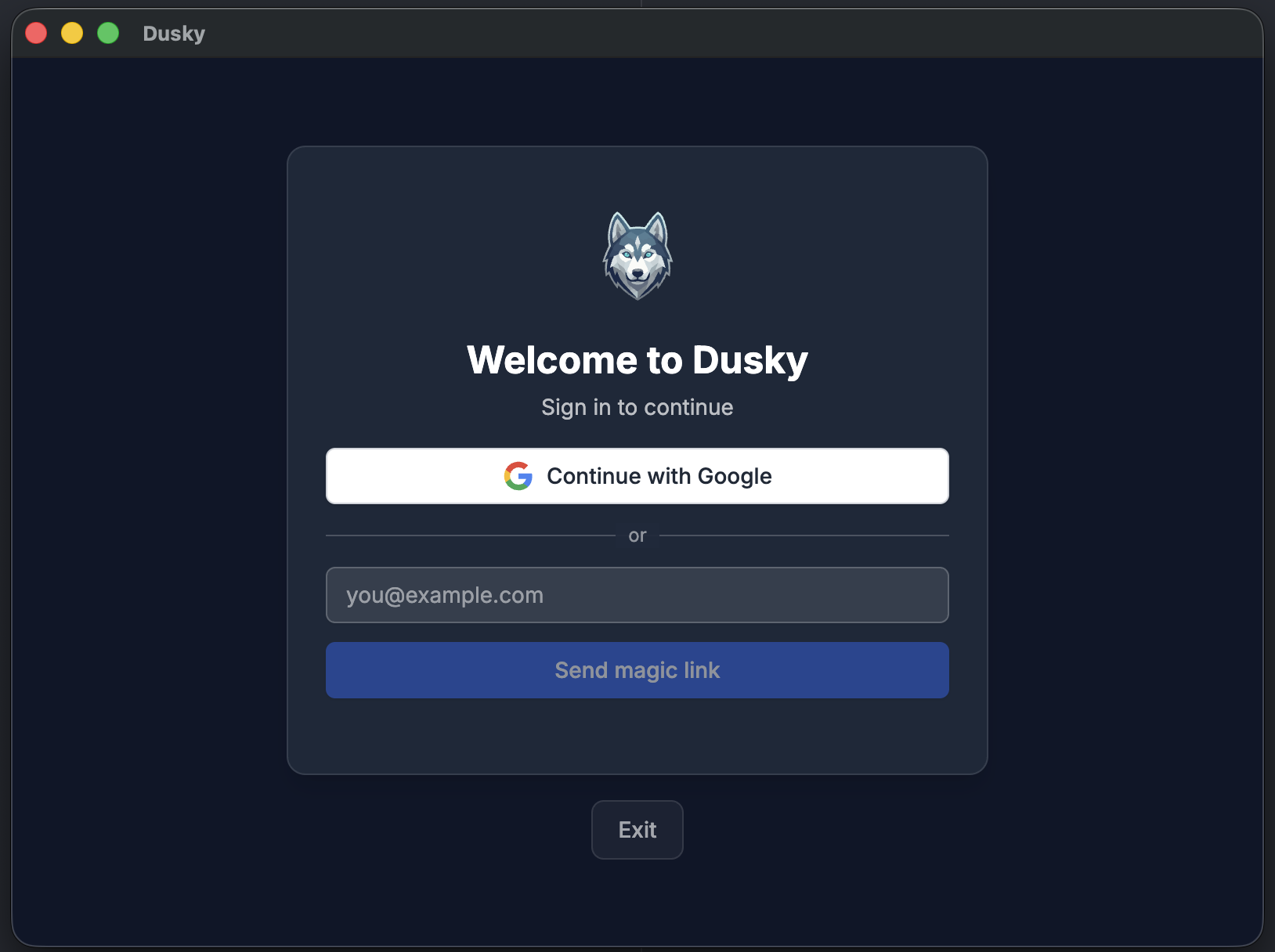
Sign in with an email magic link
Section titled “Sign in with an email magic link”- Enter your email address.
- Click Send magic link.
- Open your inbox and click the link in the email. That link finishes signing you in.
Dusky shows a “Check your email” confirmation while it waits. There is no password to create or remember.
Staying signed in
Section titled “Staying signed in”You stay signed in across restarts. Dusky securely stores your session and refreshes it automatically, so you do not have to sign in before every interview.
Sign out
Section titled “Sign out”Sign out from the ⋯ menu → Logout. It is not in Settings.
Managing your account
Section titled “Managing your account”Account and billing details live on Dusky’s servers, not in the app. There is currently no in-app option to change your email or delete your account — contact [email protected] for account changes.
To manage your subscription, see Plans & Billing.