
Stealth Mode
Stealth mode is Dusky’s core invisibility feature. The interview overlay — the window you use during a call — is hidden from screen sharing, the taskbar, the app switcher, and screen recordings.
The dashboard is a separate, ordinary window and is only protected under one specific condition. See Two windows: overlay and dashboard below before you open it during a call.
What stealth mode does (for the overlay)
Section titled “What stealth mode does (for the overlay)”| Feature | Behavior |
|---|---|
| Screen share | The overlay window is excluded from Zoom, Meet, Teams, and other platforms |
| Dock / Taskbar | App icon is hidden from the macOS Dock and Windows Taskbar |
| App switcher | Hidden from Cmd+Tab (macOS) and Alt+Tab (Windows) |
| Screen recording | Window content is protected and appears blank in recordings |
| Click-through | Non-interactive areas let mouse clicks pass through to the app below |
Toggle visibility
Section titled “Toggle visibility”Press Cmd/Ctrl+B to show or hide the interview overlay. Even when visible to you, the overlay remains invisible to screen share. Use Cmd/Ctrl+B to quickly glance at a response, then hide it again.
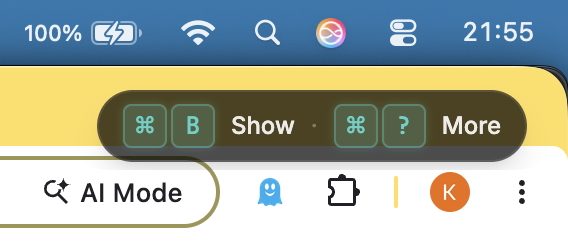
When the window is hidden, a small pill appears in the top-right corner of your screen reading ⌘B Show · ⌘? More, reminding you how to bring Dusky back. The pill is itself invisible to screen share and recordings.
How it works
Section titled “How it works”Dusky registers as a screen-share-excluded window at the operating system level. On macOS, this uses the system content protection API. On Windows, Dusky uses the display affinity API to exclude itself from screen capture. Conferencing apps that share your screen through the standard OS capture path honour this flag and skip the window.
The same flag is what makes the window appear blank if a screen recording tool captures the frame.
What the mechanism is — and where it is known to work
Section titled “What the mechanism is — and where it is known to work”There is no per-app allowlist inside Dusky. The overlay sets one operating-system flag — content protection — and every conferencing app sees the same window. So the question is never “does Dusky support Zoom?” but “does this capture method honour the OS flag?”.
It is honoured by the normal screen-share and screen-recording paths on macOS and Windows, which is what Zoom, Google Meet, Microsoft Teams, Webex, Slack huddles, and browser-based conferencing tools use to share your screen.
Testing invisibility
Section titled “Testing invisibility”During onboarding, Dusky walks you through an invisibility test:
- Press Cmd/Ctrl+B to hide the window.
- Start or join a screen share in your conferencing app.
- Confirm that Dusky does not appear in the shared view.
- Press Cmd/Ctrl+B to bring it back.
Always on — no toggle to forget
Section titled “Always on — no toggle to forget”Invisibility is not a mode you have to remember to switch on. The interview overlay is screen-share-excluded and content-protected by default, every session. There is no stealth on/off switch to leave in the wrong position before a call.
Two windows: overlay and dashboard
Section titled “Two windows: overlay and dashboard”Dusky runs as two windows with different jobs:
- The overlay is the invisible interview companion — frameless, always on top, and excluded from screen capture. This is what you use during a call.
- The dashboard is a normal window used for signing in, onboarding, granting permissions, running the invisibility test, and managing settings and billing. It behaves like any other app window.
The overlay’s invisibility is unconditional. The dashboard’s is not, and the difference matters: