
Settings
The Settings panel is where you tune how Dusky looks, manage your account and subscription, and check for updates.
Open Settings
Section titled “Open Settings”Open the ⋯ menu on the toolbar and choose Settings, or press Cmd/Ctrl+, to open the Settings dialog directly. Settings has three sections: Display, Subscription, and About.
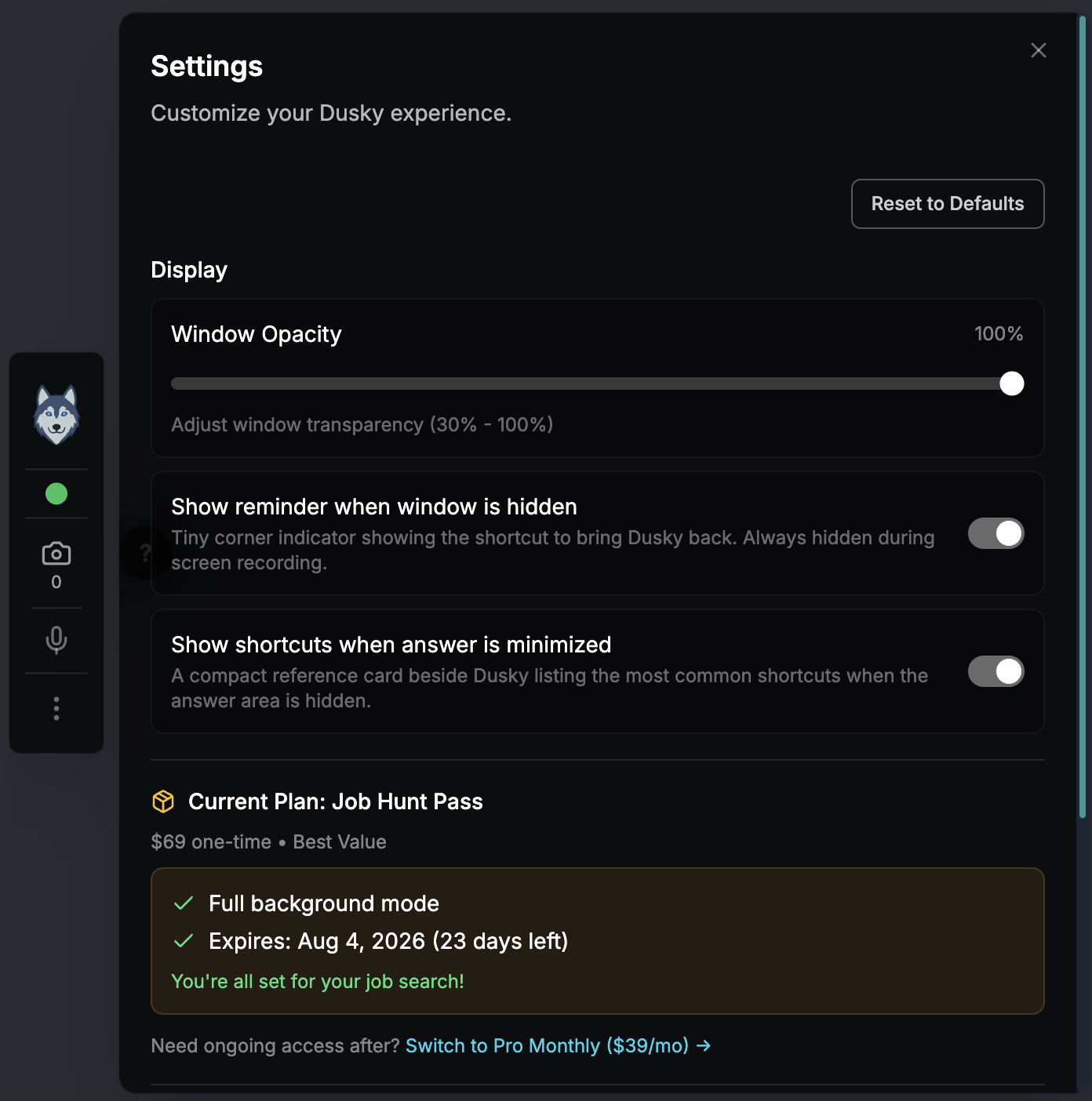
Display
Section titled “Display”| Setting | What it does | Default |
|---|---|---|
| Window Opacity | Slider that sets how transparent the Dusky window is, from 30% to 100% | 70% |
| Show reminder when window is hidden | Toggles the corner hint pill (⌘B Show · ⌘? More) that appears after you hide Dusky. Always hidden during screen recording | On |
| Show shortcuts when answer is minimized | Toggles the minimized cheatsheet card next to the floating bar | On |
| Reset to Defaults | Restores the display settings to their original values | — |
Subscription
Section titled “Subscription”The Subscription section shows your current plan or trial status and lets you upgrade or manage billing.
- Upgrade opens the plan comparison, then Stripe checkout in your default browser.
- On the Pro Monthly plan, Manage subscription opens the Stripe billing portal in your browser to change your payment method, view invoices, or cancel.
For plans, prices, and how the free trial works, see Plans & Billing.
| Item | What it does |
|---|---|
| About Dusky | Shows the installed app version |
| Check for Updates | Checks for a newer version; tells you if you already have the latest |
For how updates install, see Updating Dusky.
Sign out
Section titled “Sign out”Logout is not in Settings. Choose Logout from the ⋯ menu — that is the only place it lives.
See Signing In & Your Account for sign-in options and account details.
Quit Dusky
Section titled “Quit Dusky”Choose Quit Dusky from the ⋯ menu to close Dusky completely.