
First-Run Setup
The first time you open Dusky it walks you through a short setup so you are ready before a real interview. This page explains each step so nothing catches you off guard.
The setup flow
Section titled “The setup flow”Setup runs in this order:
- Sign in — with Google or an email magic link (see Signing In).
- Welcome — a short intro screen; click Get Started.
- Permissions — grant Screen Recording and Microphone access.
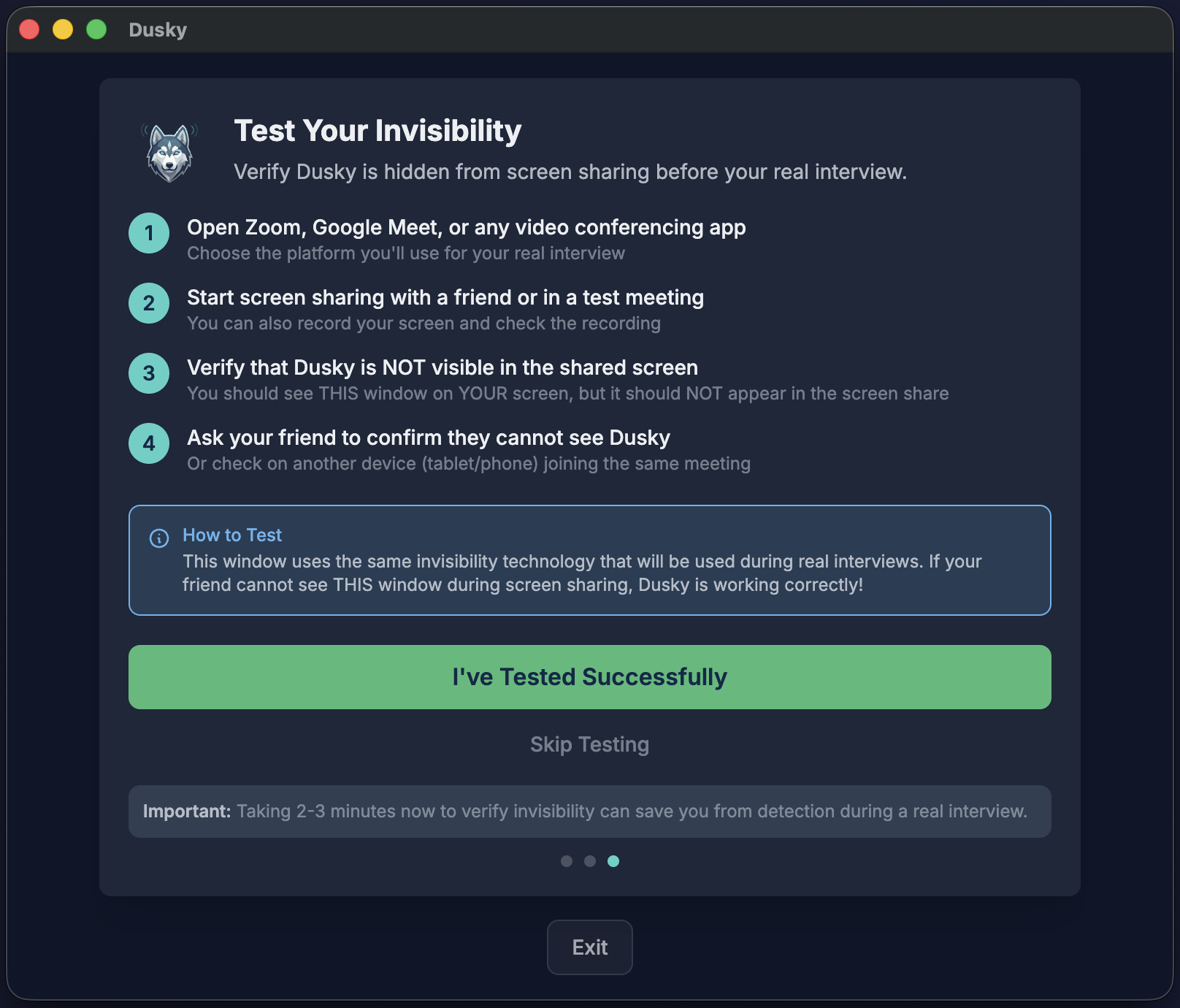
- Invisibility Test — confirm Dusky is hidden from screen sharing.
- Tutorial — a quick interactive tour of the main shortcuts.
Steps 2–4 are shown as Step 1 of 3, 2 of 3, and 3 of 3. The tutorial follows once setup is complete.
Granting permissions
Section titled “Granting permissions”Dusky needs two permissions, and both are required to work:
- Screen Recording — so Dusky can capture interview problems from your screen.
- Microphone — so Dusky can transcribe the interviewer’s questions.
Each permission shows a live status (granted, denied, or checking) and a button to open the right system settings. Dusky re-checks automatically when you return, and only lets you continue once both are granted.
On Windows, Dusky does not show these native permission prompts — the equivalent access is handled by the system. See Permissions troubleshooting if audio or capture is not working.
Testing invisibility
Section titled “Testing invisibility”The Invisibility Test lets you confirm Dusky is hidden from screen share before it matters. The test window uses the same mechanism as a real interview — one operating-system flag — so a pass tells you that flag is honoured by the app and capture method you tested with. It is not a blanket guarantee for every tool. To run it:
- Open a video call (Zoom, Google Meet, or Teams).
- Start screen sharing or a recording.
- Confirm Dusky is not visible in the shared view — you can see this window, but your viewer cannot.
- For extra certainty, ask a friend or use a second device to confirm.
Click I’ve Tested Successfully to finish. You can skip the test, but Dusky warns you first.
The tutorial
Section titled “The tutorial”After setup, Dusky switches into interview mode and runs a 6-step tutorial that points out the shortcuts you will use most:
- Minimize / maximize the panel (Cmd/Ctrl+E)
- Screenshot (Cmd/Ctrl+H)
- Audio (Cmd/Ctrl+Shift+A)
- Solve (Cmd/Ctrl+Enter)
- Show / hide the window (Cmd/Ctrl+B)
Each step advances as you actually try the shortcut. You can replay the tutorial any time from the ⋯ menu → Tutorial.